



Microsoft Teams, which surpassed 320 million monthly active users in 2024 according to Microsoft, has become one of the most widely used collaboration tools in the world.
In this context, the Teams background has evolved into a genuine visual communication tool and a key element of personal branding.
Virtual backgrounds on Teams address real needs in today’s hybrid work environment.
First, they solve a practical issue: privacy. Not everyone has a dedicated home office. Many professionals work from their living room, bedroom, or even their kitchen. A virtual background allows them to conceal personal spaces while maintaining a polished, professional image.
Beyond privacy, a Teams background is also a subtle form of self-expression. Some users choose sleek office interiors to project a corporate image. Others prefer calming landscapes that create a relaxed atmosphere. Creative teams often select bold or original designs that reflect their company culture.
Research supports the strategic importance of background choice. A 2023 study published in the scientific journal PLOS ONE examined how video call backgrounds influence first impressions. The findings showed that backgrounds featuring plants or books significantly improved perceptions of trustworthiness and competence. In contrast, domestic or whimsical settings consistently received lower ratings.
Your background directly influences how others perceive your professional credibility.
Microsoft Teams includes a built-in background library, but the possibilities extend far beyond the default options. Backgrounds generally fall into several categories.
Classic professional backgrounds replicate typical office environments: elegant meeting rooms, modern coworking spaces, corporate libraries, or offices with panoramic views. These images maintain a formal appearance without revealing your actual workspace.
Natural landscapes are another popular choice. Tropical beaches, snowy mountains, lush forests, or minimalist gardens add a sense of calm to meetings. These visuals can help reduce stress and create a more relaxed atmosphere.
Branded company backgrounds are increasingly common. Many organizations now design custom visuals featuring their logo and brand colors, reinforcing corporate identity during client or partner meetings.
Artistic backgrounds appeal particularly to professionals in creative industries. Graphic illustrations, geometric patterns, minimalist compositions, or artwork offer an alternative to photorealistic settings and help convey a distinct aesthetic identity.
Finally, themed backgrounds often surge in popularity during special occasions such as holidays, company celebrations, major sporting events, or awareness campaigns. These temporary visuals can foster a sense of belonging and strengthen team cohesion.
Adding a background in Microsoft Teams takes just a few simple steps, whether you are using a computer or a mobile device. The process varies slightly depending on whether you activate it before or during a meeting.
When joining a Teams meeting, the app displays a preview screen before your camera turns on. This is the ideal moment to choose your virtual background.
On the preview screen, locate the visual effects icon, typically found at the bottom. Depending on the version of Teams, it may appear as a sparkle icon or a small figure. Clicking it opens a side panel with available background options.
A live preview lets you see the result before confirming your choice.
If you want to upload a custom image, select “Add new” or click the plus sign to import a photo from your computer. Teams supports common formats such as JPEG, PNG, and BMP. For the best results, use a high-resolution landscape image, ideally at least 1920 by 1080 pixels.
Once selected, your background remains active for future meetings unless you change it manually.
You can also choose the “Blur” option, which keeps your real environment visible but softly out of focus. This offers a balance between transparency and privacy.
You can change your background even after the meeting has started. This is especially useful if you forgot to activate it beforehand or decide to switch visuals mid-session.
In the control bar at the bottom of the screen, click the three dots menu labeled “More actions,” then select “Apply background effects” or “Video effects,” depending on your Teams version. The same panel used before the meeting will appear, allowing you to choose a new background or adjust settings.
The change happens instantly and does not interrupt the meeting.
That said, it is best to avoid making adjustments during important presentations or formal discussions, as other participants may notice the transition.
The Teams mobile app also supports virtual backgrounds, although the options may be slightly more limited than on desktop.
Before joining a meeting on your smartphone or tablet, you will see a camera preview. Tap the effects icon, often represented by a magic wand or sparkle, to access background options. You can select from the built-in library and, depending on your app version, import images from your device gallery.
During a mobile meeting, tap the screen to reveal controls and access video effects from the menu.
Not all backgrounds deliver the same visual quality or professional impact. Several factors influence the final result.
Lighting is the most important element. Teams relies on AI to detect your outline and separate you from the background. This works best with even, front-facing lighting. Poor or uneven lighting can cause imperfect edges, blurry outlines, or visual glitches around your face and shoulders.
Distance from your real background also matters. Sitting at least one meter away from walls or furniture significantly improves separation quality. This natural depth helps the algorithm distinguish foreground from background more accurately.
The image itself should be chosen carefully. Overly busy or brightly colored backgrounds can distract participants and reduce focus. Visual professionals recommend relatively neutral images with a sense of depth to avoid the cutout effect, where you appear pasted onto the scene.
Color contrast is equally important. Your clothing should contrast with the background to avoid unintended transparency effects. For example, wearing green in front of a green setting can create a green screen effect similar to film production.
Despite how easy virtual backgrounds are to use, certain mistakes can undermine your professional image.
Using low-resolution images is one of the most common errors. Pixelated or blurry backgrounds look careless and unprofessional. An image that seems fine on a smartphone may appear poor quality on a large display.
Choosing overly personal or inappropriate images is another pitfall. Vacation photos, celebrity images, or niche cultural references may be misinterpreted in a professional context. A simple rule is to ask yourself whether you would feel comfortable using the background in a meeting with senior leadership or a major client.
Ignoring harmony between clothing and background can create awkward visual effects. A white shirt against a white background can make your head appear to float, while matching patterns may cause visual confusion.
Forgetting to check your background before important meetings is also common. Images sometimes fail to load properly, unintentionally revealing your real surroundings. A quick glance at your preview can prevent surprises.
Finally, using humorous or fantasy backgrounds in formal contexts can damage credibility. While playful visuals may lighten the mood during informal team calls, they are rarely appropriate for investor presentations or job interviews.
Beyond the built-in Teams library, many resources offer professional backgrounds, both free and paid.
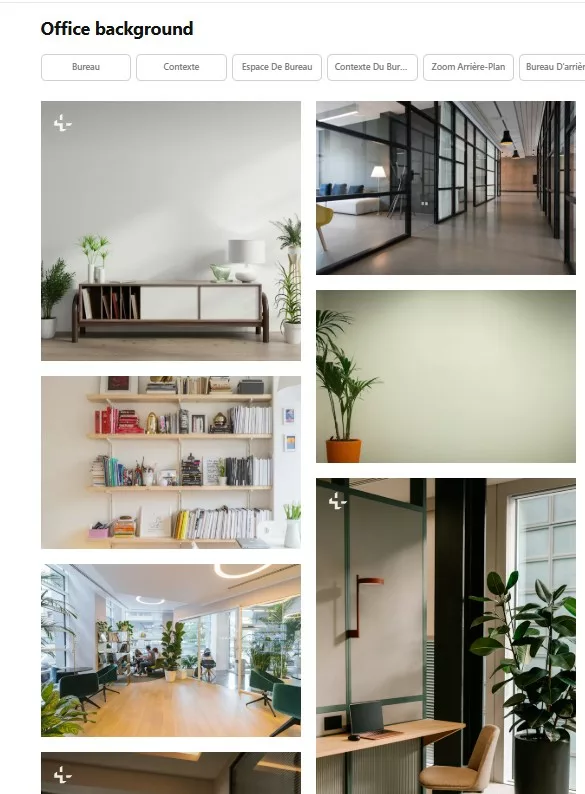
Stock photo platforms such as Unsplash, Pexels, and Pixabay provide thousands of royalty-free images suitable for virtual backgrounds. Searching for terms like “office,” “workspace,” or “minimal interior” yields high-quality options. These platforms are known for their professional resolution and photography standards.
Microsoft also offers an official gallery of downloadable backgrounds on its website. These images are optimized specifically for Teams and span professional, creative, and casual categories. They are regularly updated to reflect seasons and events.
Graphic designers and communications agencies also create branded background collections tailored to company identity. These paid services provide cohesive and professional visuals for entire teams.
Using virtual backgrounds in Teams can affect system performance.
Real-time processing to separate the user from the background and apply the virtual image places a noticeable load on the CPU and GPU. On older or less powerful computers, this may lead to lag, overheating, or reduced video quality.
Microsoft recommends minimum specifications for optimal use, including an Intel Core i5 processor or equivalent, 8 GB of RAM, and ideally a dedicated graphics card. On devices that do not meet these requirements, using the blur option or disabling backgrounds altogether may provide better performance.
Internet bandwidth is generally not significantly impacted, as background processing happens locally on your device before video transmission. However, system slowdowns can indirectly affect overall video smoothness.
Yes. Virtual backgrounds are available in all versions of Teams, including the free edition. Users can choose Microsoft’s preset images or upload their own without restriction.
In most cases, a high-quality background combined with proper lighting is difficult to distinguish from a real environment. However, minor visual artifacts around hair or fast movements, or inconsistent lighting, may reveal that a virtual background is in use.
Imperfect cutouts usually result from insufficient lighting or low contrast. Improve results by using even front lighting, sitting farther from your real background, and avoiding clothing colors similar to your surroundings. Curly or voluminous hair can naturally present more challenges for the detection algorithm.
Teams allows users to upload numerous custom backgrounds, although the interface may become cluttered with too many options. While there is no officially documented limit, keeping a curated selection of five to ten versatile backgrounds is generally recommended.
Yes. When a Teams meeting is recorded, the virtual background appears in the recording exactly as it did during the live session. Your real environment is not captured if a virtual background is active.
Although Teams does not offer a built-in background sharing feature, image files can easily be shared via email, Teams chat, or shared storage. Recipients simply download the image and add it to their background library manually.
A Teams background is no longer just a technical feature. It is a strategic visual communication tool in today’s hybrid professional landscape. Using it effectively helps protect your privacy, maintain a professional image, express your identity, strengthen brand consistency, and create the right atmosphere for productive discussions.
Future developments may introduce interactive backgrounds, 3D environments, or automatic customization based on meeting context. For now, mastering the basics remains essential: good lighting, high-quality imagery, and alignment with your professional message are the foundations of effective use.
In a world where first impressions increasingly happen through a screen, your virtual background is not a minor detail. It is a central part of your digital professional presence.